Searching for Cancelled Items by Cancellation Reason

If you would like to create a list of cancelled items based on the cancellation reason, you will need to do a Custom Search.
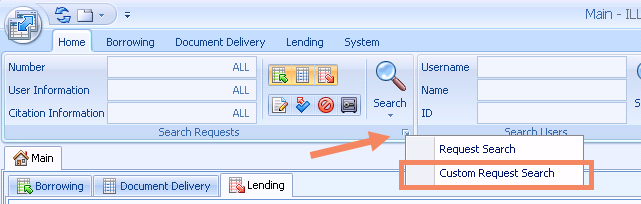
- Open a Custom Search with the small open icon in the corner of the Search Requests group.
- Select Custom Request Search.
- Click the green plus icon to add new search parameter. All the values that you need to add to the query are in the Transactions table and can be found in the Field list when you click the blue link in the default query string.
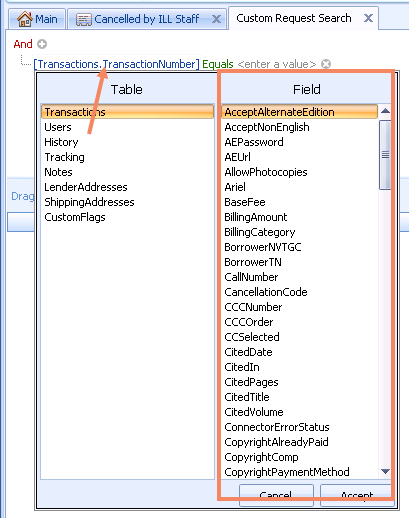
- Start by looking for requests in the Cancelled by ILL Staff by clicking the blue link and selecting Transaction Status from the field list. Then add Cancelled by ILL Staff to the value field.
- Add a new string to your query by clicking the + icon.
- If you want to limit your search to a range of dates, add a new string with Creation Date as the field, then use the Is Between operator and enter dates in the 2 value fields that are prompted.
- Continue adding search strings with the + icon and include the Process Type limiting to Borrowing or Lending as the value.
- The last value you will want to add is the Reason for Cancellation. If you use the Equals operator you will need to add the exact name of the reason or you can use the Begins With operator and enter the first word of the phrase in the Reason for Cancellation.
Here's an example of a search used recently with one of our Concierge customers.
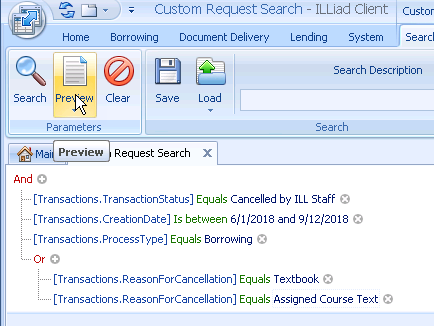
In this example, the library wanted a list for two different cancellation reasons so an OR operator was added with the Group option.
- Click the red And and then select Add Group--a new And operator will be added to your query.
- Click the And again to change it from And to Or. Then add the strings that you need.

You can then use the Export feature to create an Excel file of the list of requests. You can also save the search to run again at a later date with the Save button.
Comments
Please sign in to leave a comment.