Whoops! I meant Mark Found Scan Now!

So you may have noticed how close geographically and how closely named the Mark Found and Mark Found Scan Now buttons are in the Client—What if you should accident click Mark Found instead of Mark Found Scan Now.
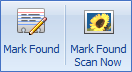
Don’t worry there is an easy way to correct this error!
If you make the error of clicking the Mark Found button, ILLiad will send the OCLC Shipped update and the ILLiad request is updated to Awaiting Lending Scannning. So you’ve completed part Mark Found of the update process—sending the Shipped message for the OCLC request. You could route the request back to In Stacks Searching and re-reprocess with Mark Found Scan Now, but this will send another OCLC update and create a Connection Manager error. So it better to pick up the request and complete the delivery of the article from the Awaiting Lending Scanning status.
Now if I try to open the Awaiting Lending Scanning queue by double clicking on it, the scanning window opens rather than what we typically expect to see which is a list of requests in that status in the grid view.
So if you happen to remember the Transaction Number for the request, you can enter it directly here in this screen to pull up the request and import or scan the appropriate document. However, if you don’t remember the TN, you can look it up by right clicking on the queue in the list and select View Requests to open the grid view and obtain the TN.
Right-Click--Choose View Requests to identify TN
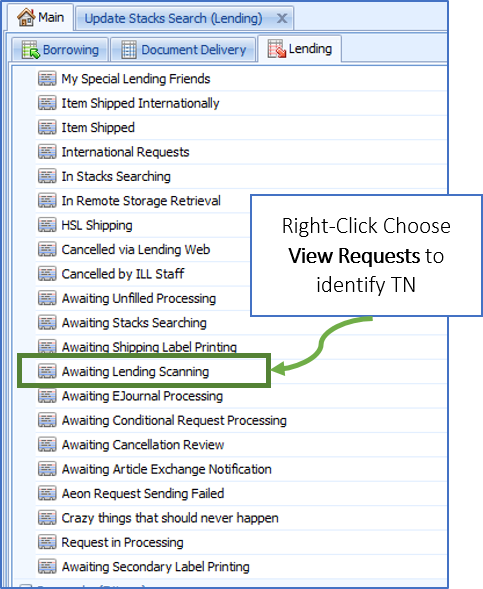
Then you can open the scanning window either by double clicking the Awaiting Lending Scanning or you can also open it from the Lending ribbon with the Scanning button

Once you have the scanning work form open, enter the TN and then import or scan the document.
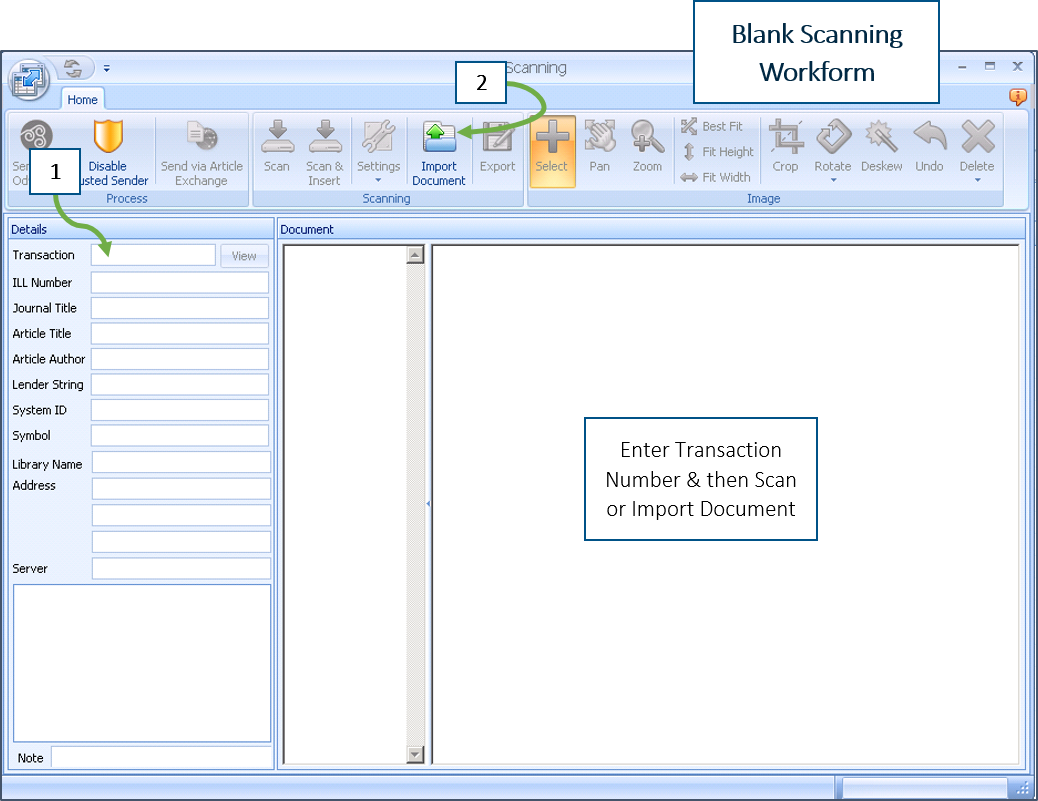
You can now deliver it with Odyssey or Article Exchange.
Comments
Please sign in to leave a comment.