Dating in Ares: Relationships among semester, course, and item records

Can courses have different dates from semester records? Can items have different dates from course records? What if a course spans more than one semester? What if students need to access a course after the semester has ended?
These are very common questions that we get from libraries who use Ares. Here is a guide to how dating in Ares works.
Semester Dates
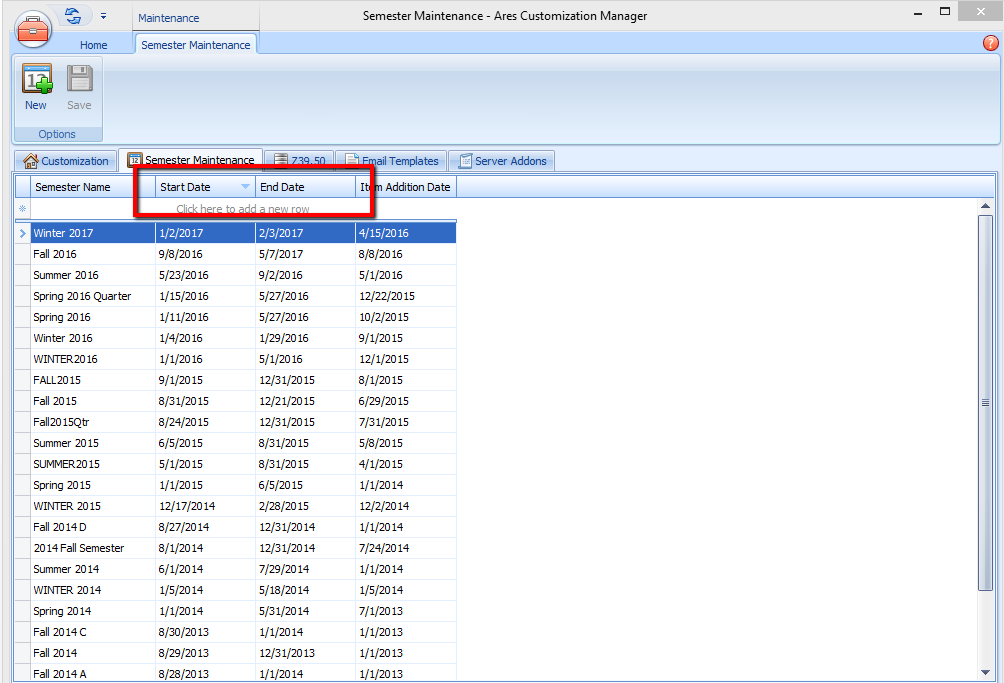
The start and end dates for a semester are configured in the Semester Maintenance tab in the Ares customization manager.
- Item Addition Date allows just instructors to access courses that belong to upcoming semesters
Course Dates
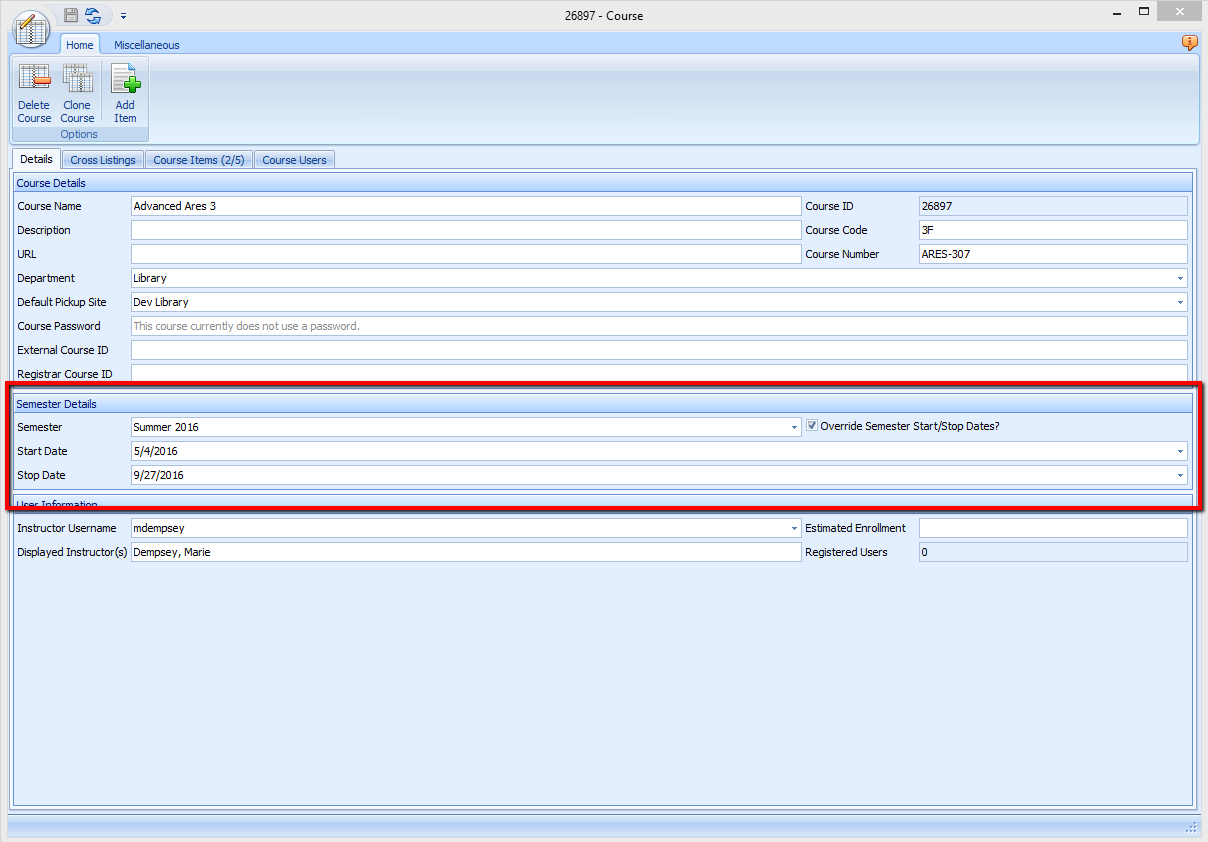
- A course’s start and end dates can be customized with dates that fall outside of the range of the semester dates.
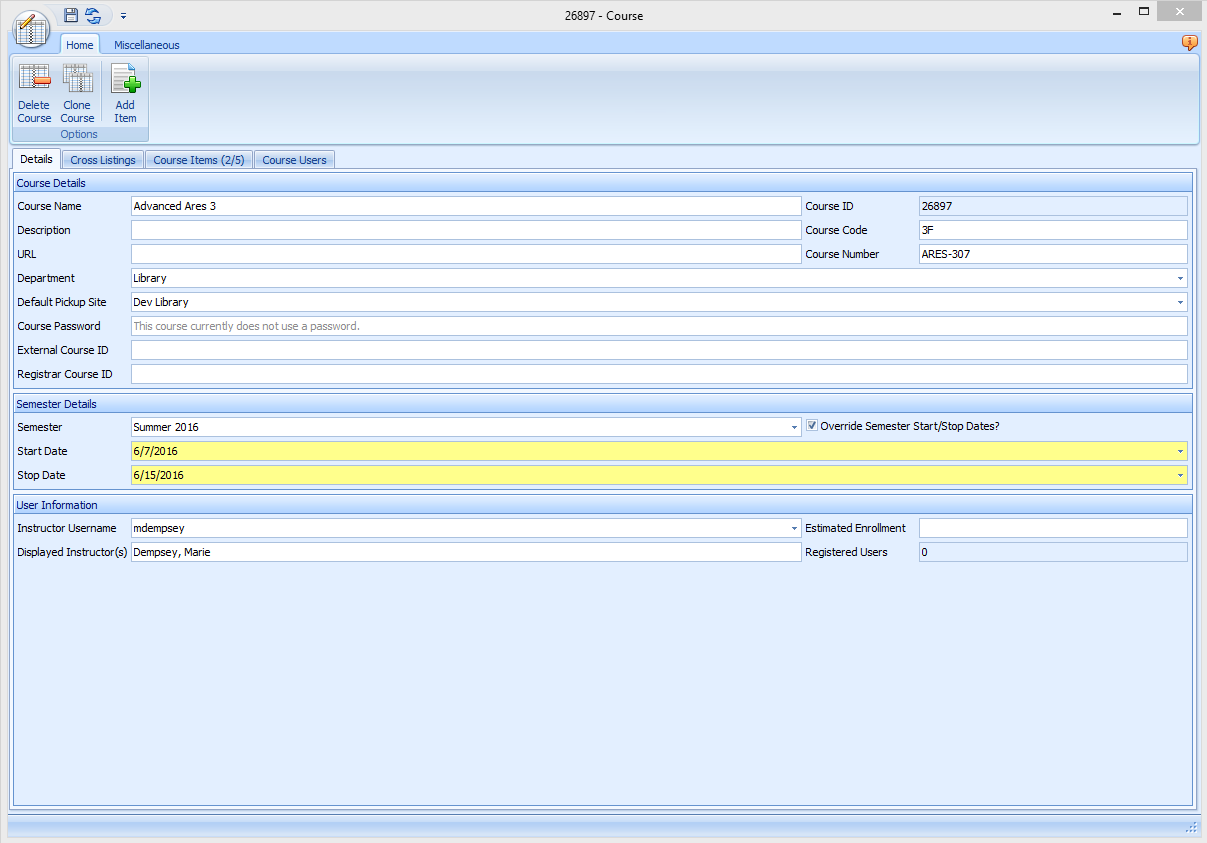
- A course’s start and end dates can also be customized with dates that fall within the range of the semester dates.
Item Dates
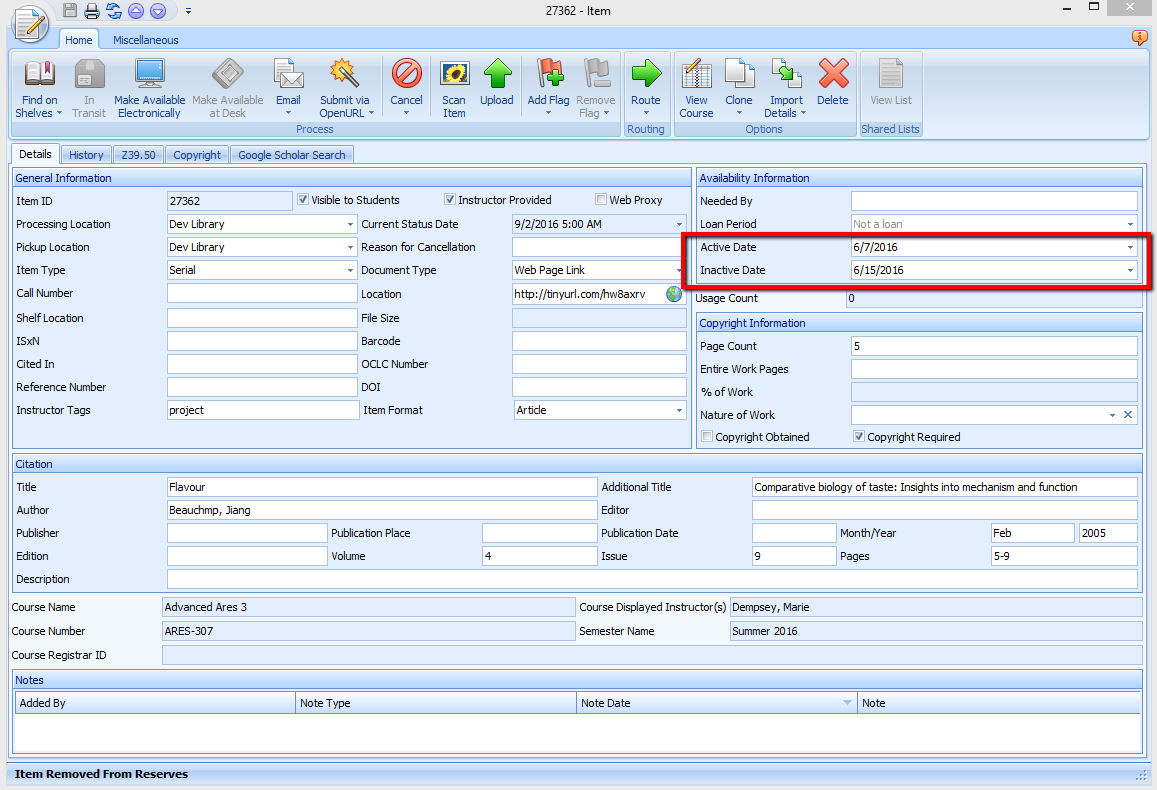
- An item’s start and end dates can only fall within the range of the course dates. The item start date cannot start before the course’s start date, and the item’s end date cannot end after the course’s end date.
Scenarios
Scenario: A course spans multiple semester time periods or years
- Option 1: Assign the course to an existing semester, and customize the course dates to extend past the semester
- Option 2: Create a semester record that is more descriptive of those types of courses (as opposed to using something like “Fall 2016” for a course that lasts an entire year).
- Most likely, you will still have to customize each course’s set of dates if they are to be available for varying times
Scenario: A student needs to view an item (or items) after the course has ended
- You will have to modify the course end date so that the item end date can be extended
- Note: when you modify the course dates, the item dates will automatically update with the new course dates. If you don’t want other item records in the course to be available after a certain time period, then you will need to modify each item record with the desired end date.
- Note: if you extend the course date after the course has already ended and the items have already routed to “Item Removed From Reserves,” then you will have to manually update the status of the desired item(s) so that they are either at “Item Available at Reserves Desk” (print items) or “Item Available on Electronic Reserves” (e-reserves) – items need to be at one of those two statuses in order to be available to the student.
Scenario: A course needs to be made available for a certain time period after the semester has ended
- Click in the Override Semester Dates box, and then change the date of the course’s end date. The item records’ dates will automatically adopt the new course dates.
- Note: if you extend the course date after the course has already ended and the items have already routed to “Item Removed From Reserves,” then you will have to manually update the status of the desired item(s) so that they are either at “Item Available at Reserves Desk” (print items) or “Item Available on Electronic Reserves” (e-reserves) – items need to be at one of those two statuses in order to be available to the student.
Scenario: If you do daily course and user data imports
- Option 1: All courses use the semester dates
- Then do not include the Start and Stop Date fields in the Courses.txt and CourseFields.txt file. Only include the Semester name. Ares will automatically assign the correct dates to the course, based on the corresponding semester record’s dates
- Option 2: Some courses use the semester dates, and some courses have custom dates; or all courses have custom dates
- Include the Start and Stop Date fields in the CourseFields.txt file.
- For the courses that use the default semester dates, you can leave the StartDate and StopDate fields set to blank (use two tabs to set the blanks) in Courses.txt. Ares will automatically assign the semester dates to the course record.
- For the courses that use custom dates, include the custom date values in Courses.txt (note the required format of the date). Ares will assign the course to the correct Semester name, but will override the semester dates in order to use the custom dates that are defined in Courses.txt.
Comments
Please sign in to leave a comment.