Trust the Instructors?? Never! (Well, maybe sometimes)

At many libraries, there are the instructors who are really good about uploading quality scans of materials that are always compliant with fair use principles and restrictions. And then there are the instructors who are uploading 19 of the 21 chapters of the new biology research book that was just published last month.
Are you aware of the Trusted button that is in the instructor user records? This might help you save some time by bypassing review of file uploads from your more reliable instructors so that you can spend that time providing educational outreach to the less reliable instructors.
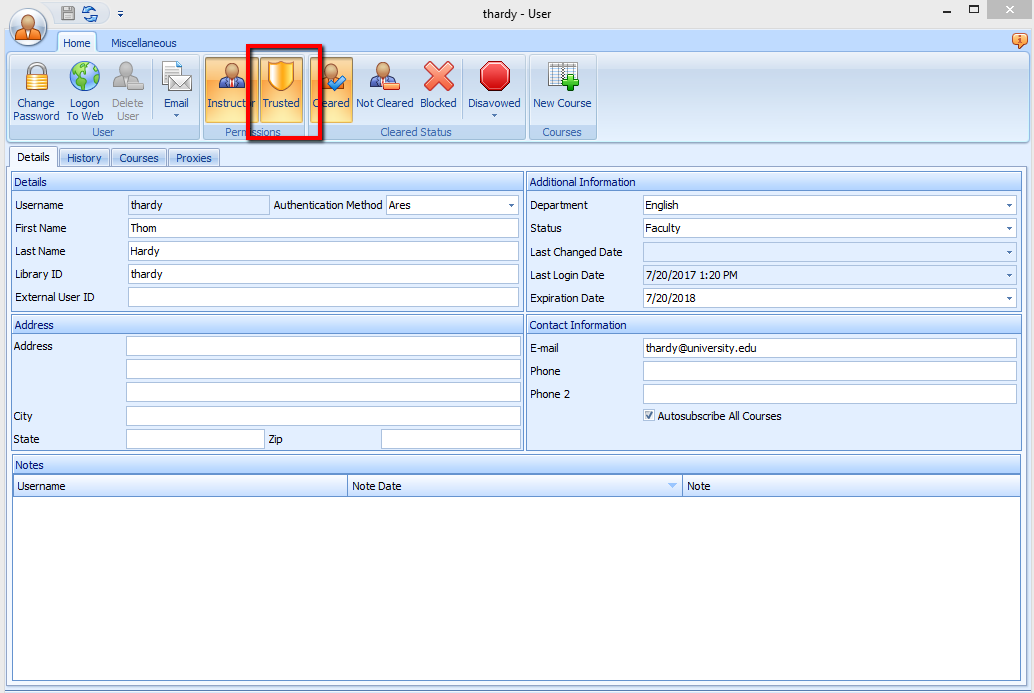
The Trusted button works like this:
If the button is turned on, then instructors will be able to upload files that will bypass staff review. This means that the associated item records will skip going to the Awaiting Review by Staff queue to go directly to Item Available on Electronic Reserve (or to Item Activation Pending if the course hasn't started yet).
However, you can control this review bypass by file type. Let's say that you want to make sure to review any files that have are a swf file (Macromedia Flash). In the customization manager, navigate to System, General, Document Types table. Make sure that the check box in the Force Review column is checked for the swf file extension. (Notice that there is also a Force Review On Clone checkbox that controls the behavior of items when they are cloned on the web.)
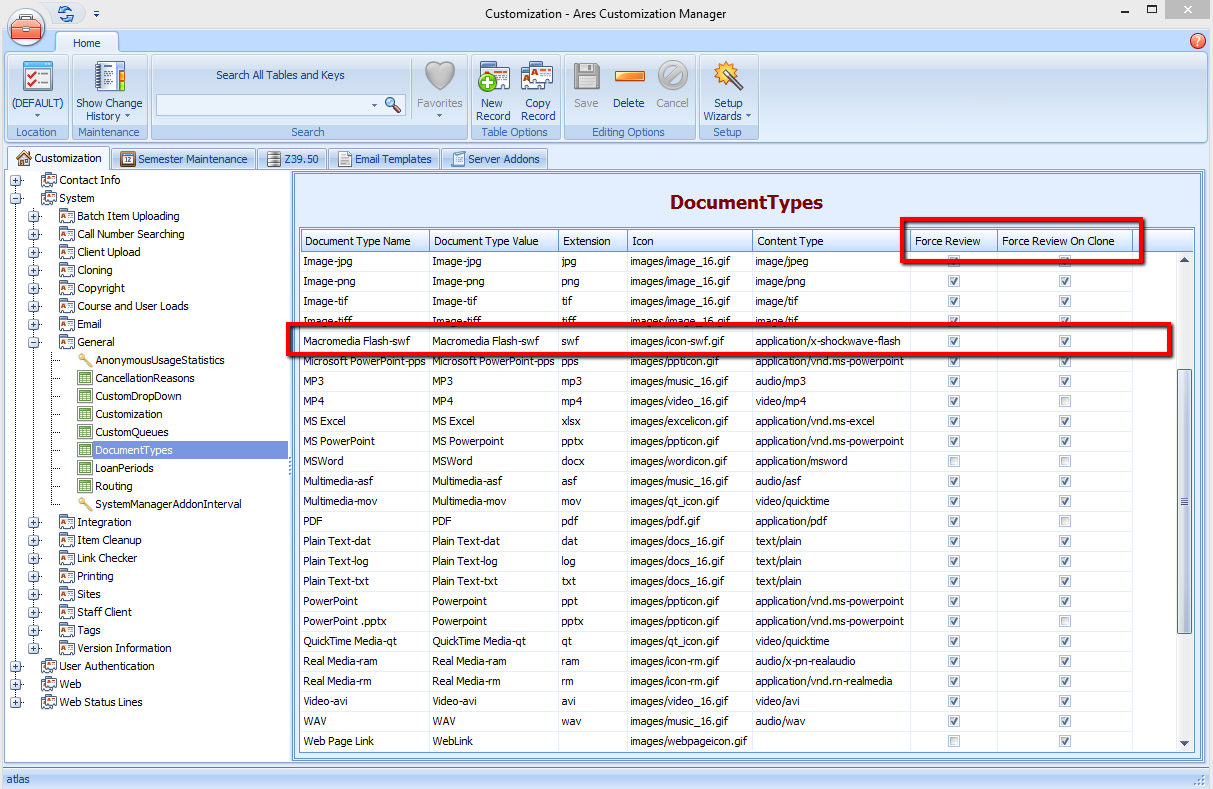
Now, even if an instructor is Trusted, any .swf files that they upload will route to Awaiting Review by Staff.
If the Trusted button is turned off for an instructor, almost all file types that the instructor uploads will route to Awaiting Review by Staff, regardless of whether or not the Force Review box is checked.
There is one exception, and that is the Web Page Link. If the Force Review box is unchecked, then any instructor, regardless of whether they are Trusted, will be able to add a Web Link URL, and the item record will route directly to Item Available on Electronic Reserve.
A note about the Force Review on Clone box
This box only controls cloning behavior on the web. When an electronic item is cloned on the web, it will route to either Awaiting Review by Staff or Item Available on Electronic Reserve (for current courses), depending on whether the box is checked.
When an electronic item is cloned on the client side, the item will always route to Item Available on Electronic Reserve, regardless of whether the Force Review on Clone box is checked.
All physical items that are cloned from the web or from the client, always route to Awaiting Request Processing.
Comments
Please sign in to leave a comment.